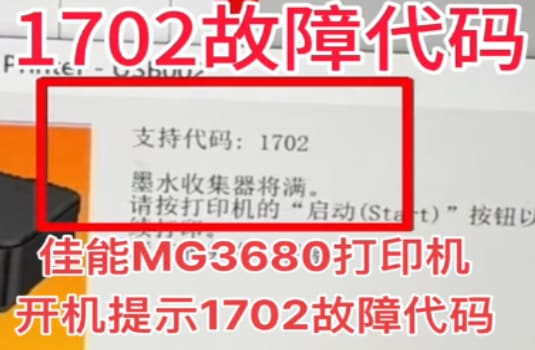
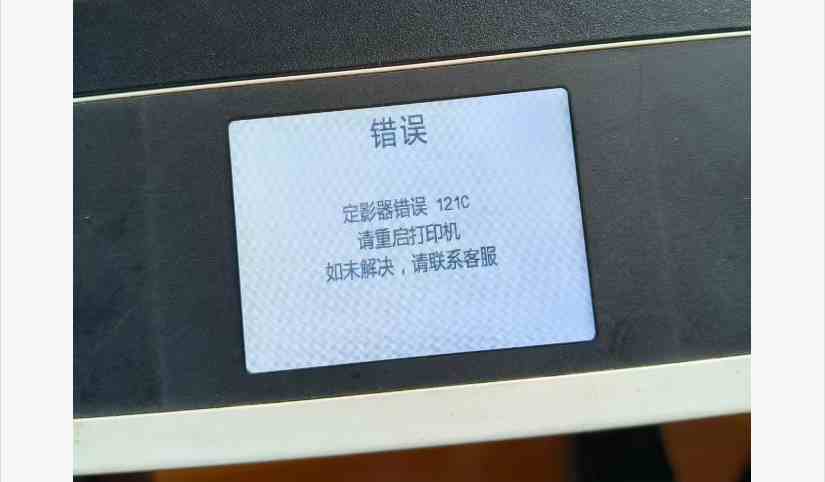
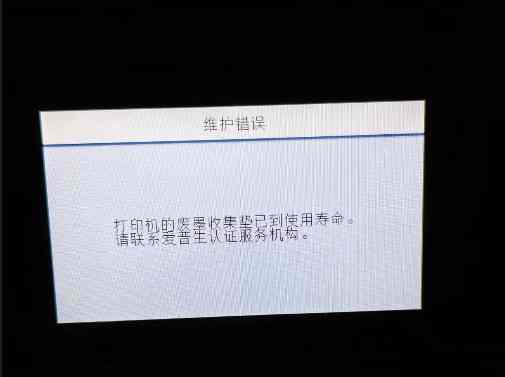
Canon printer waste ink pad can be reset by following the steps below:
1.Prepare a clean and dry cloth.
2.Open the cover of the Canon printer, then locate the waste ink pads.
3.Gently wipe the waste ink pads with the dry cloth, do not use water.
4.When the pads are wiped clean, install them back into the printer and close the cover.
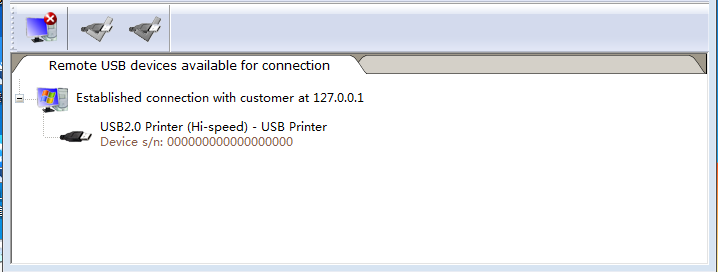
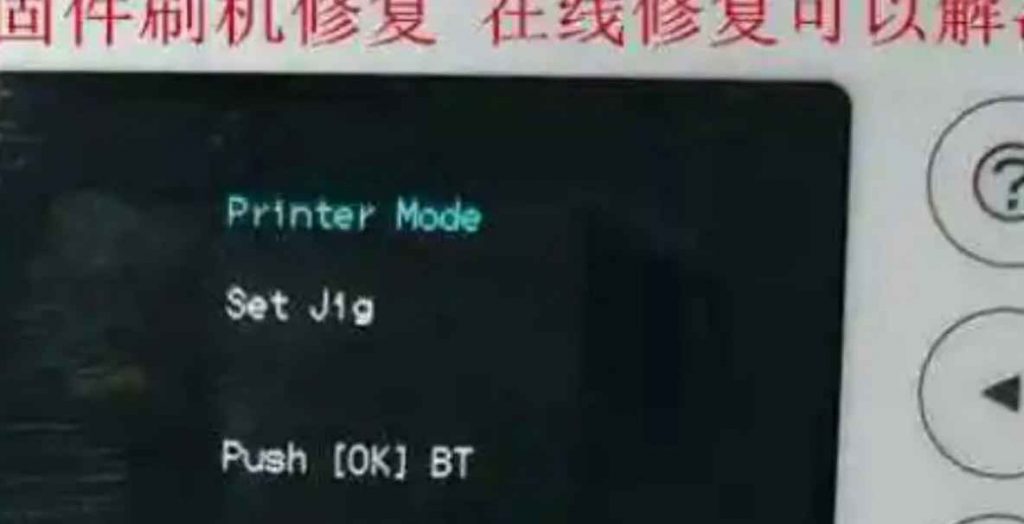
5.Turn on the printer and enter the service mode.
6.Find the Waste Ink Counter Reset option, usually in the “Maintenance” tab and click it.
7.The Canon printer should now be reset and no longer display a “Waste Ink Full” message.
8.After resetting the Canon printer’s waste ink pad, you may need to reconnect the printer to your computer and then re-install the printer driver.
9.Finally, check the waste ink pads for any ink leakage. Clean them if necessary, and it’s best to replace them after a certain number of cleaning cycles.